
Ever wish you could change where the center focus for an image you’ve uploaded to your Squarespace website? I have great news for you…
Let’s say you have THE perfect image for a page or post on your Squarespace website. It depicts exactly what you’re trying to convey in copy, and it’s a nice juicy, crystal clear shot.
But when you upload it to use as a post’s feature image, a background, or maybe an image inside a shape, your desired subject is a little off center, or too high or low in the frame.
You have the power to adjust that focus right in the page or post you’re working on.
Step-By-Step How-To Refocus Images:
Inside the post or page you’re working on, and/or in the post or page Settings cog ⚙️, upload your desired image. Ideally that image is already properly named (you can change an image’s name inside Squarespace, too → ), and is optimized for the web (not over 250kb for in-page/post images and not over 500kb for big backgrounds).
Once uploaded, notice the little white outlined circle that defaults to the very center of the image.
You can drag that little circle around to focus on where you’d rather highlight the image’s subject.
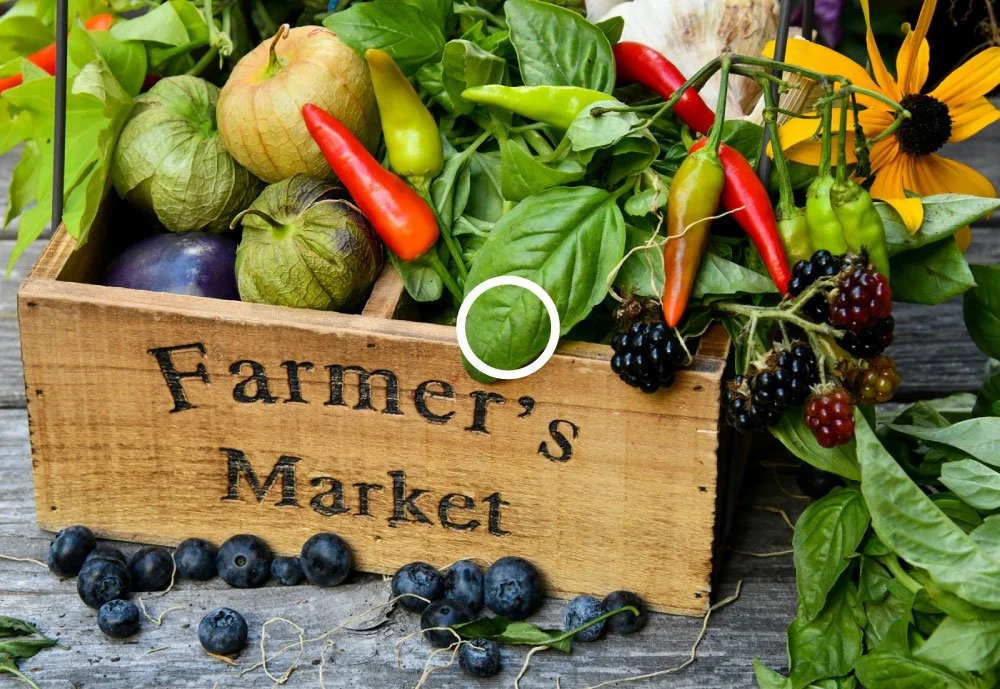

This is especially useful for background images that might run off the page, or are too tall or wide for the frame, shape, or section background it’s being added to.

This is also useful for mobile view, although it can be tricky to get it exactly where you want it to center on - but at least you have some options.
FOR EXAMPLE:
In this very post, I uploaded a horizontal image for the feature image - which is also the background behind the post title, but I want to focus on the subject that is a little further to the right of center.
I just nudged that little white circle to the left to get the center focused better on that right-of-center object.
Save.
Going back into already-uploaded images? No problem.
Just open the page or post you want to adjust images on
Click on the image
Find the little white circle seen over the image
Drag the little white circle around to adjust
Save
Enjoy your new-found power to take over the universe - at least as far as image adjusting is concerned!